"Why isn't my website showing on Google?" is a question we hear a lot. The honest answer is that it usually comes down to a short list of causes, and you can check most of them yourself in an afternoon with free tools.
On 1 November 2026 we ran the full set of checks on our own website, greenshootsmedia.com.au. This post walks through them in the order we use, with what we found on our site and what we changed. You don't need special software: just Google Search Console (free), a browser and some patience.
First: is it missing, or just not ranking?
These are two different problems with two different fixes.
- Not indexed means Google hasn't stored the page at all, so it can't appear for any search.
- Indexed but not ranking means Google has the page but shows it so far down the results that nobody sees it.
Typing site:yourdomain.com.au into Google gives a rough idea, but it isn't reliable. The real answer comes from the URL Inspection tool in Search Console, which tells you page by page whether a URL is on Google, and if not, why not.
When we inspected every page in our sitemap, 24 of our 28 public pages were indexed. The four that weren't told three different stories:
- Our new cricket page showed "URL is unknown to Google". It was new, and Google hadn't come across it yet.
- A portfolio case study and one of our legal agreements showed "Discovered - currently not indexed". Google knew they existed but hadn't fetched them.
- Our other legal agreement showed "Crawled - currently not indexed". Google had fetched it and decided not to store it for now.
None of those is an error. They're Google's queue and Google's judgement. But you can't tell which situation you're in without looking.
Step 1: Rule out a penalty or a security problem
It's rare, but rule it out first. In Search Console, open Manual actions and then Security issues. Both of ours said "No issues detected". If yours says anything else, that's the job to fix before anything on this list.
Step 2: Make sure Google is allowed to index the page
It's easy to block Google by accident, usually with a setting left over from when the site was being built. Check four things on every page that matters to you:
- It loads. The page should return a normal "200" response, not an error or a chain of redirects.
- There's no noindex. Look for a robots meta tag containing "noindex" in the page source, and for an X-Robots-Tag header in the server's response. The header is easy to miss because it doesn't appear anywhere in the page itself.
- robots.txt isn't blocking it. Search Console's URL Inspection will tell you if it is.
- The canonical tag points at the page itself. A canonical tag tells Google which address is the real one. If it points somewhere else, Google may index that other address instead.
On our site, all 28 sitemap pages returned a 200 directly, every canonical matched its own address, and none carried a noindex. Some of our pages are kept out of Google on purpose, such as private tools that carry noindex, and that's the right use of it. The problem is a noindex on a page you want found. Google explains the details in its guide to blocking indexing with noindex.
Step 3: Check your sitemap is telling the truth
A sitemap is a list of your pages that you hand to Google. It can't force anything into the index, but it should be accurate. Ours had three problems:
- Addresses that redirect. Several entries, including our contact, booking and blog pages, were listed without the trailing slash, while the real pages live at the version with it. Each of those entries sent Google to a redirect instead of the page.
- Dates that meant nothing. Every entry carries a "last modified" date. Many of ours shared the same old date whether or not the page had changed since. A date that never moves, or moves for every page at once, tells Google nothing useful.
- A page that disagreed with itself. Our Central Coast web design page lives at an address ending in a slash, but its canonical tag, social sharing tags and structured data all used the address without one.
We fixed all three. The sitemap now lists each page's final address. Its dates come from when a page's actual content last changed, not from site-wide menu or template edits. And the Central Coast page's tags now agree with its address. Then we resubmitted the sitemap in Search Console. Google read it the same day and reported Success, with 28 pages discovered.
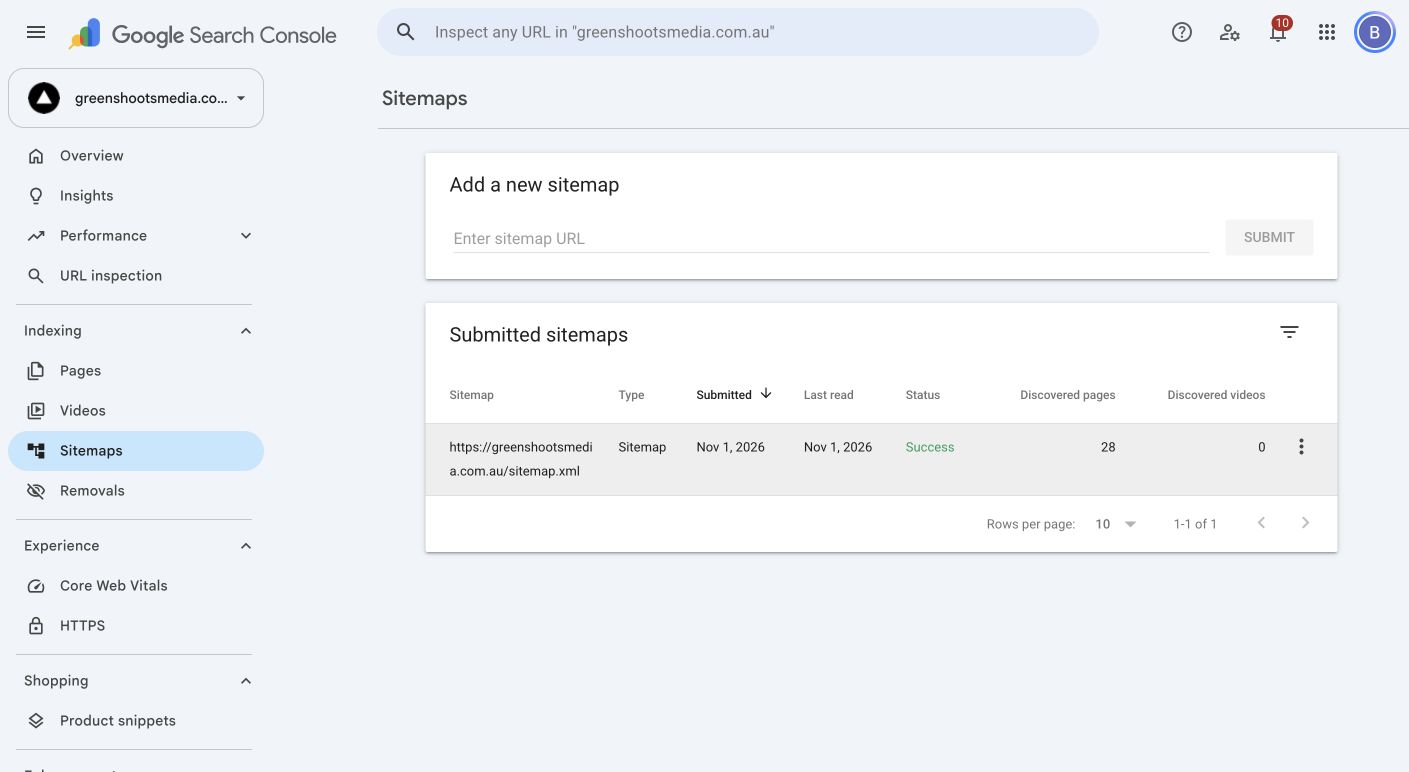
Discovered isn't the same as indexed. It means Google knows the pages exist; indexing follows on Google's timetable. Google's guide to building and submitting a sitemap covers the format if you're making one by hand.
Step 4: Deal with addresses from your old website
If your business has had a website before, old addresses from it can still be out there in links and bookmarks. Our site used to run on WordPress, and one of its old blog category addresses was still around. We added a permanent (301) redirect from that address to our current blog, so anyone following an old link lands somewhere useful.
What we didn't do is redirect every old address to the homepage. Old date archives and malformed addresses still return a genuine "not found". Sending everything to the homepage looks tidy, but Google can treat those redirects as "soft 404s" and visitors end up somewhere they didn't ask for. Redirect an old page only when there's a real new page that replaces it.
Step 5: Ask Google to look, and know that it can fail
For a new or changed page, URL Inspection has a "Test live URL" button and a "Request indexing" button. On 1 November we tested our new cricket page and got the answer you want: "URL is available to Google" and "Page can be indexed".
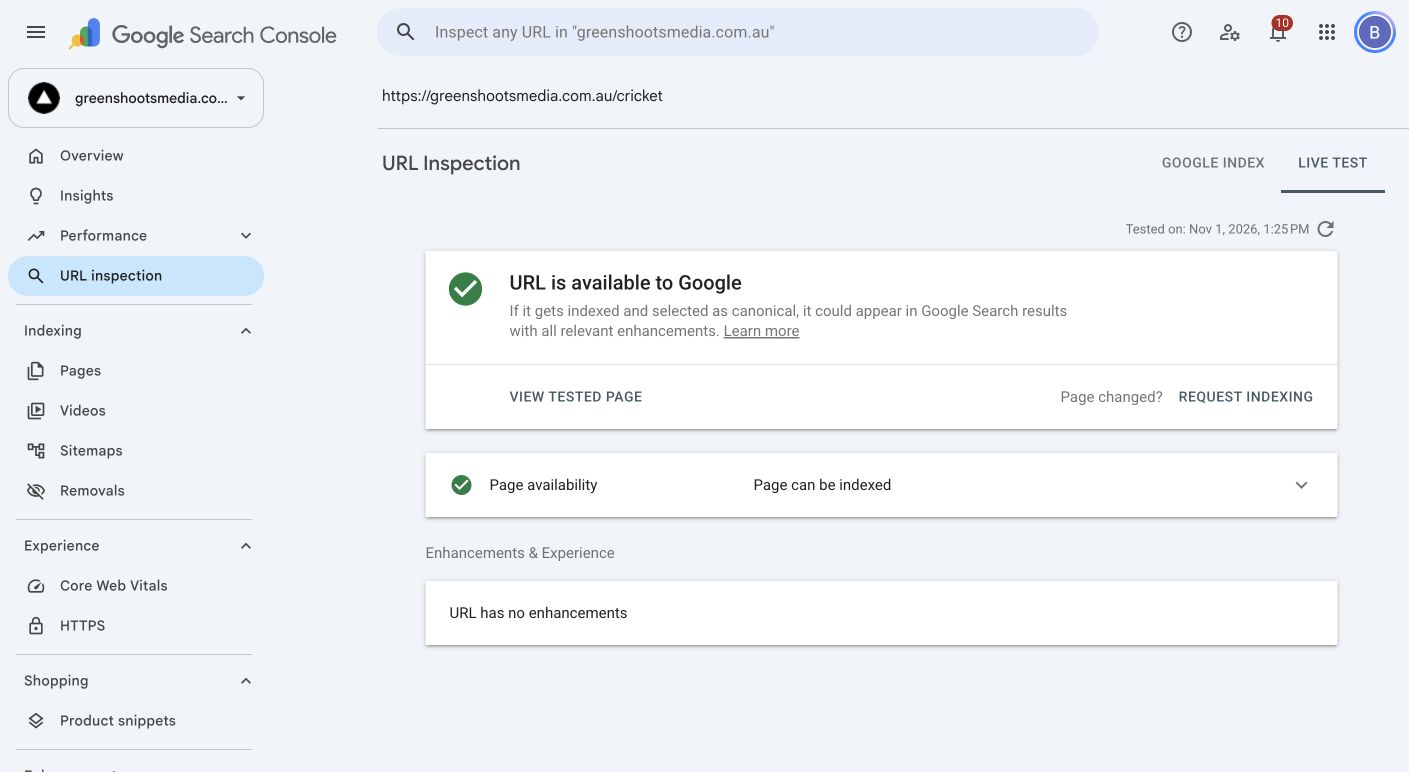
Then we pressed Request indexing, and Search Console replied "Oops! Something went wrong. We had a problem submitting your indexing request." We reloaded and tried again, and got the same error. That isn't a fault in the website; it's the tool. The sitemap had already been accepted, and a sitemap is how Google suggests telling it about more than a handful of pages anyway (see Google's guide to asking for a recrawl). Requesting indexing is a nudge, not a command. Google decides whether and when any page is indexed.
Step 6: Don't panic about missing speed data
Search Console's Core Web Vitals report had no data for our site, on mobile or on desktop. That isn't a fail. The report is built from real visits by Chrome users, and a smaller site often doesn't have enough of them for Google to report on. Check your speed with lab tools in the meantime, and don't read "no data" as "bad".
Indexed but still invisible? That's a ranking problem
The conclusion of our own audit was simple: crawling and indexing weren't what was holding our site back. Most of our pages were already on Google. What decides whether pages get seen is a different list:
- Page titles that say what you do and where. "Home" or just your business name tells Google and searchers very little.
- One clear page per service, with enough real detail to be worth showing, rather than one page that mentions everything.
- A complete Google Business Profile for local searches. We wrote up the Google Business Profile checklist we used on our own listing.
- Reviews and mentions from real customers and other websites.
- Time. New pages and new sites take a while to settle.
The checklist, in order
- Inspect your important pages in Search Console: indexed or not, and why.
- Check Manual actions and Security issues.
- Confirm each page loads with a 200, has no noindex (tag or header), isn't blocked by robots.txt, and has a canonical pointing at itself.
- Make sure your sitemap lists final addresses with honest dates, then submit it.
- Redirect old addresses only where there's a real replacement.
- Test new pages live and request indexing, and don't worry if the button errors.
- If your pages are indexed, work on titles, content, your Business Profile and reviews.
If you'd like a head start, run a free SEO audit on your website. It checks the on-page basics and gives you a plain-English report. And if you'd rather hand the whole job over, our local SEO service covers the technical checks, your content and your Google Business Profile.